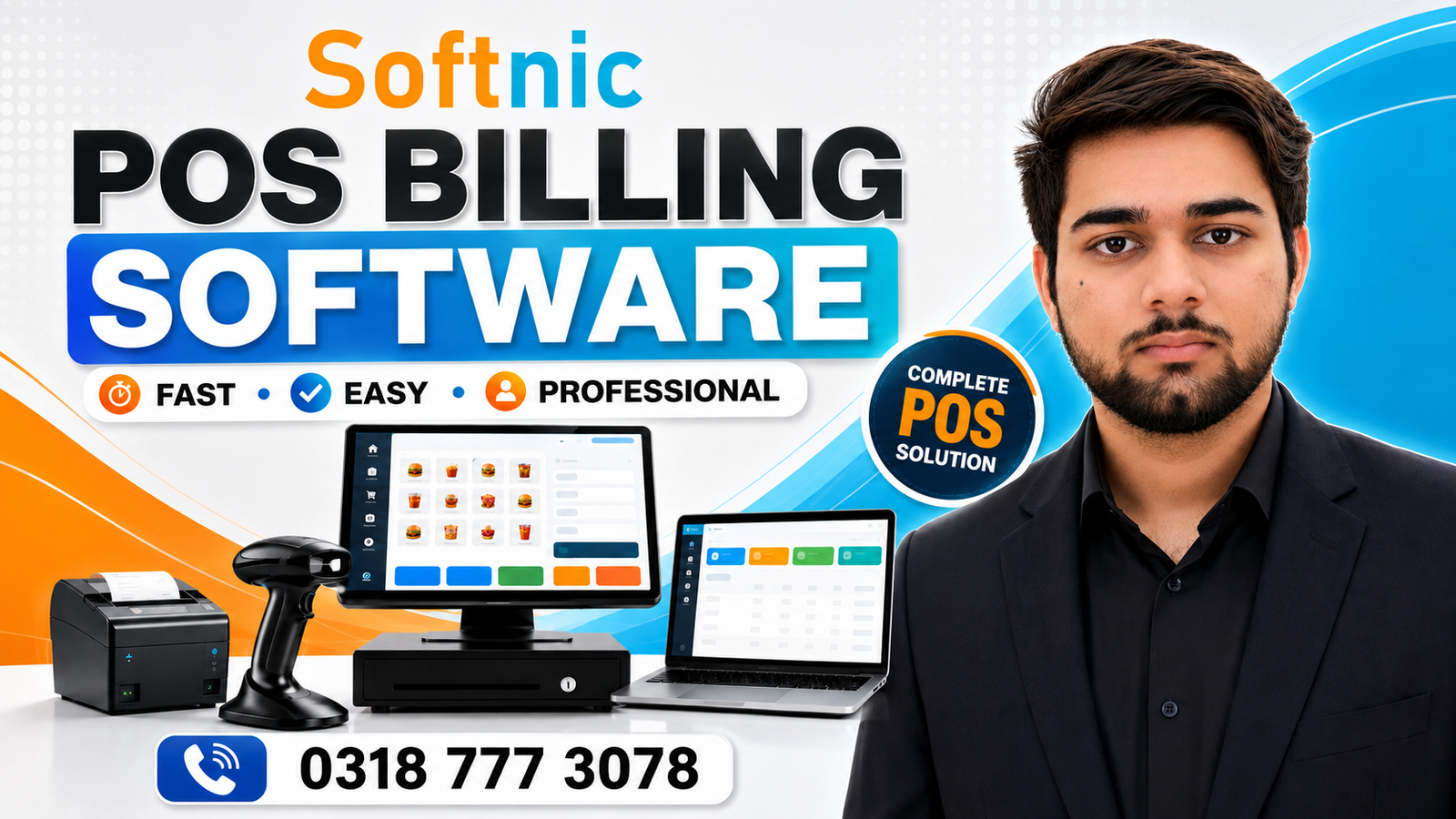
Windows Pos Software
Running a retail store, restaurant, or service business in today’s fast‑paced market means staying on top of sales, inventory, and customer data at all times. A reliable point‑of‑sale (POS) system that operates on Windows can streamline these tasks, reduce manual errors, and give you real‑time insight into your operations. This guide explains what Windows POS software is, why it matters, and how to choose the right solution for your business.
Why Windows POS Software is a Game‑Changer
Windows POS software is built to run on Windows PCs and laptops, making it a natural fit for businesses already using Microsoft’s operating system. Unlike mobile or cloud‑only solutions that rely on Wi‑Fi, Windows POS offers:
- Offline capability – keep selling even when the internet is down.
- Seamless integration – connect with existing Windows‑based accounting or inventory programs.
- Customizability – add modules or develop extensions to match niche requirements.
- Hardware compatibility – easily pair with barcode scanners, receipt printers, and cash drawers.
Key Features Every Windows POS Software Should Offer
- Inventory Management – track stock levels, reorder alerts, and product variants.
- Sales & Transaction Tracking – record each sale, apply discounts, and generate receipts.
- Customer Relationship Management (CRM) – capture buyer data, loyalty points, and purchase history.
- Reporting & Analytics – export real‑time reports for revenue, top‑selling items, and employee performance.
- Multi‑User Access – set permissions for cashiers, managers, and administrators.
- Hardware Support – support for barcode scanners, EMV readers, and thermal printers.
- Security & Compliance – encrypted data, role‑based access, and compliance with local payment regulations.
Choosing the Right Windows POS Software
With so many options available, selecting the ideal POS solution requires a clear decision framework. Below is a step‑by‑step approach to help you narrow down choices.
- Define Your Business Needs
- Retail? Restaurant? Service provider? Each industry has unique demands.
- Estimate transaction volume and number of registers.
- Identify required integrations (e.g., accounting, e‑commerce).
- Assess Budget Constraints
- Initial license fee versus subscription costs.
- Hidden costs: hardware, training, support, and upgrades.
- Review Feature Set Against Priorities
- Does the software offer offline mode?
- Is there a built‑in inventory or CRM module?
- Can you customize reports and workflows?
- Evaluate Vendor Reputation
- Look for customer testimonials and case studies.
- Check support availability (phone, chat, email).
- Verify the vendor’s compliance with security standards.
- Request a Demo or Trial
- Hands‑on experience is the best way to judge usability.
- Ask for a walkthrough of key features and integration points.
- Plan Implementation and Training
- Schedule adequate staff training before the launch date.
- Set up a backup strategy and data migration plan.
Free vs. Paid Windows POS Software
Many retailers wonder whether a free solution can meet their needs. Below is a comparison of what you can expect from free and paid options.
| Aspect | Free POS | Paid POS |
|---|---|---|
| Cost | No license fee | License or subscription |
| Features | Basic sales and inventory | Advanced reporting, multi‑user access, integrations |
| Support | Community forums | Dedicated support, SLAs |
| Updates | Irregular | Regular releases, new modules |
| Scalability | Limited to small stores | Handles large volumes, multiple outlets |
If your business is just starting out with a limited budget, a free POS software for Windows can be a good start. For growing businesses, investing in a paid solution typically pays off through improved efficiency and data insight.
Implementation Tips for a Smooth Roll‑Out
- Back up your data before migrating to avoid loss.
- Choose the right hardware – ensure printers, scanners, and cash drawers are supported.
- Train all users – schedule role‑specific workshops.
- Run a pilot phase – test in a single register before full deployment.
- Document processes – create a quick‑reference guide for common tasks.
Cautionary Notes
While Windows POS software offers robustness, it also carries a responsibility for data security. Ensure that your chosen system encrypts transaction data and that you maintain a secure backup routine. Additionally, when opting for a free solution, verify that the vendor does not embed hidden costs such as licensing for peripheral hardware or mandatory upgrades.
Short Comparison: Offline vs. Online Windows POS
- Offline Mode – Works without internet, essential for remote locations or unreliable connectivity. However, real‑time data sync occurs only when the network is restored.
- Online Mode – Real‑time data synchronization and cloud backups, but requires a stable internet connection. Ideal for businesses with centralized inventory and multiple locations.
Choose the mode that aligns with your operational environment and connectivity reliability.
Conclusion
Windows POS software can transform the way you manage sales, inventory, and customer relationships. By carefully assessing your business needs, comparing free and paid options, and planning a structured implementation, you’ll set your operations up for efficiency, accuracy, and growth. Whether you start with a free solution and scale up or immediately invest in a full‑featured package, the right Windows POS will keep your business moving forward.