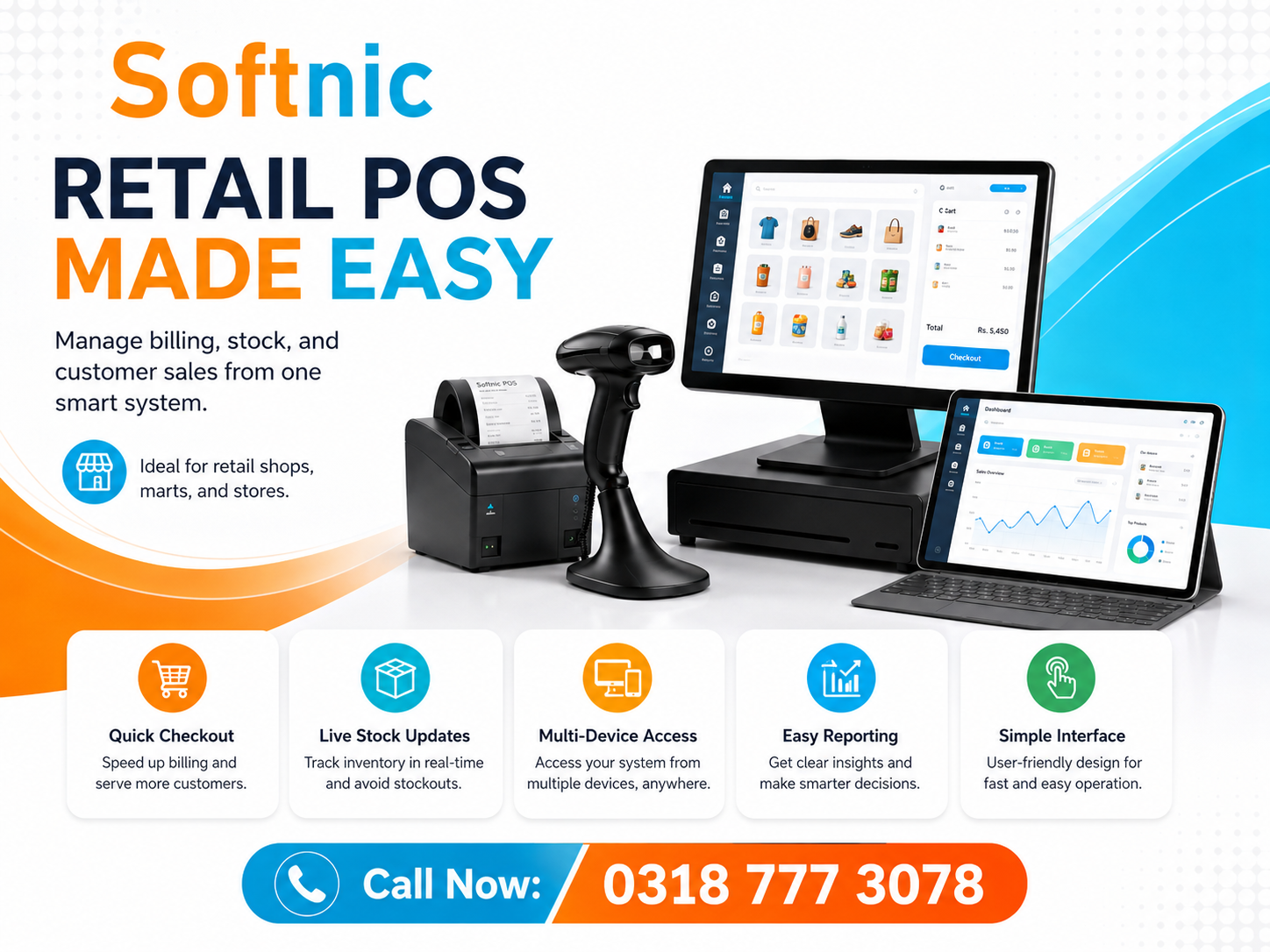
Windows Pos Billing Software
Windows POS billing software runs natively on Microsoft Windows operating systems, giving retailers, restaurants, and service businesses a familiar, stable platform for sales, inventory, and customer management. Because it installs directly on a PC or laptop, it works offline by default, integrates with local printers and barcode scanners without extra configuration, and keeps sensitive transaction data on your own hardware. If you need a reliable point‑of‑sale system that leverages existing Windows devices, this category is the practical starting point.
What Makes Windows POS Billing Software Different
Unlike browser‑based or mobile‑only solutions, a Windows POS application runs as a standard executable. That means:
- Full access to local peripherals — receipt printers, cash drawers, barcode scanners, pole displays, and scales — without middleware.
- Consistent performance regardless of internet connectivity; the software continues to process sales, update stock, and print receipts during outages.
- Centralized data storage on the device or a local network server, giving you complete control over backups and compliance.
- Familiar user interface patterns (menus, keyboard shortcuts, multi‑window support) that reduce training time for staff already comfortable with Windows.
Core Features to Expect
Any professional Windows POS billing package should cover these functional areas:
- Sales processing — quick item lookup, barcode scanning, price overrides, discounts, split payments, and refunds.
- Inventory control — real‑time stock deduction, low‑stock alerts, purchase orders, and variant management (size, color, batch).
- Customer management — profiles, purchase history, loyalty points, and targeted promotions.
- Reporting & analytics — daily sales summaries, profit margins, top‑selling items, shift reports, and tax calculations.
- Multi‑user roles — cashier, manager, and admin permissions with audit trails.
- Hardware integration — plug‑and‑play support for ESC/POS printers, cash drawers triggered by the printer, and USB/serial scanners.
Typical Business Scenarios
Windows POS billing software fits a wide range of operations:
- Retail stores — boutiques, electronics shops, pharmacies, and supermarkets that need fast checkout and detailed stock tracking.
- Restaurants & cafés — table management, kitchen order tickets (KOT), split bills, and modifier support for menu items.
- Service businesses — salons, repair shops, and gyms that combine appointment scheduling with point‑of‑sale.
- Wholesale counters — bulk pricing, credit accounts, and invoice printing for B2B customers.
How to Choose the Right Windows POS Solution
Follow this evaluation sequence to match a product to your workflow:
- Define must‑have features. List the non‑negotiables: offline mode, specific hardware, multi‑location sync, GST/VAT compliance, etc.
- Test hardware compatibility. Connect your receipt printer, cash drawer, and scanner to a trial installation. Verify driver‑less printing and drawer kick signals.
- Assess data ownership. Confirm the database is local (SQLite, SQL Server Express, MySQL) and that you can export or back up data without vendor lock‑in.
- Check update & support policy. Look for regular security patches, version upgrades, and responsive technical support — preferably with remote assistance capability.
- Evaluate total cost. Compare perpetual license vs. subscription, any per‑terminal fees, and optional modules (e‑commerce sync, SMS alerts, advanced reporting).
- Run a pilot. Process real transactions for at least one full business day. Involve the actual cashiers who will use the system daily.
Windows POS vs. Other Deployment Models
Windows (desktop) POS — Installed locally, works offline, full peripheral control, data stays on‑premise. Best for businesses with stable hardware and limited internet reliability.
Online / cloud POS — Runs in a browser, requires constant connectivity, data hosted by vendor. Suits multi‑location chains needing real‑time central reporting.
Mobile POS (Android/iOS) — Tablet or phone based, highly portable, often cloud‑dependent. Ideal for pop‑ups, food trucks, or line‑busting in large stores.
Many vendors now offer hybrid editions — a Windows client that can sync with a cloud dashboard — giving you offline resilience plus remote visibility. If that flexibility matters, verify the sync logic: conflict resolution, sync frequency, and whether historical data remains accessible during extended outages.
Implementation Tips for a Smooth Rollout
- Standardize hardware. Use the same printer and scanner models across all terminals to simplify driver management and troubleshooting.
- Create a master image. After configuring one terminal (software, drivers, shortcuts, user accounts), clone the disk image to other machines for consistent deployments.
- Schedule automated backups. Use Windows Task Scheduler or the POS software’s built-in backup to copy the database to a secondary drive or NAS nightly.
- Train with real data. Import a sample of your actual product catalog and customer list so staff practice with familiar SKUs and names.
- Document workflows. Write one‑page cheat sheets for common tasks: opening/closing shift, processing a return, applying a loyalty discount, handling a power loss.
Common Pitfalls to Avoid
- Ignoring Windows updates. Delaying OS patches can break printer spooler services or introduce security vulnerabilities. Test updates on a staging machine first.
- Under‑specifying the PC. A modern POS app with a local SQL database needs at least 8 GB RAM, an SSD, and a dual‑core CPU for smooth multi‑window operation.
- Skipping network segmentation. If terminals share a LAN with guest Wi‑Fi, isolate POS traffic via VLAN or a dedicated switch to prevent congestion and reduce attack surface.
- Over‑customizing the UI. Excessive custom fields or rearranged screens increase training overhead and complicate future upgrades.
- No disaster‑recovery drill. Restore a backup to a spare laptop quarterly. Verify that the restored system prints, scans, and calculates taxes correctly.
Scaling Beyond a Single Terminal
When your operation grows, Windows POS software can scale in two directions:
- Peer‑to‑peer LAN. One machine acts as the database server; others connect as clients. Simple, low cost, but the server must stay on.
- Dedicated server + thin clients. Move the database to a Windows Server instance (or SQL Server Express on a robust PC). Terminals run only the client layer, reducing local resource demands.
For multi‑branch setups, look for built‑in replication or an API that pushes consolidated sales data to a central dashboard. Some Softnic Solutions clients start with a single desktop POS billing software license and later add online POS billing software modules for headquarters reporting without replacing the front‑end.
Security & Compliance Considerations
Because the software stores payment and customer data locally, you own the compliance responsibility:
- Enable Windows BitLocker on the system drive to encrypt data at rest.
- Restrict POS user accounts to standard (non‑admin) privileges.
- Disable unused USB ports via Group Policy to prevent data exfiltration.
- Ensure the POS application masks PANs (card numbers) in logs and receipts per PCI‑DSS guidelines.
- Retain transaction logs for the period required by local tax authorities — typically 5‑7 years.
Final Recommendation
Choose Windows POS billing software when you need deterministic offline performance, direct hardware control, and data sovereignty on hardware you already manage. Validate the fit with a hands‑on trial using your actual peripherals and a day’s worth of real transactions. Prioritize vendors who provide clear licensing, local database access, and a track record of timely Windows compatibility updates. That approach minimizes surprise costs and keeps your checkout running smoothly for years.