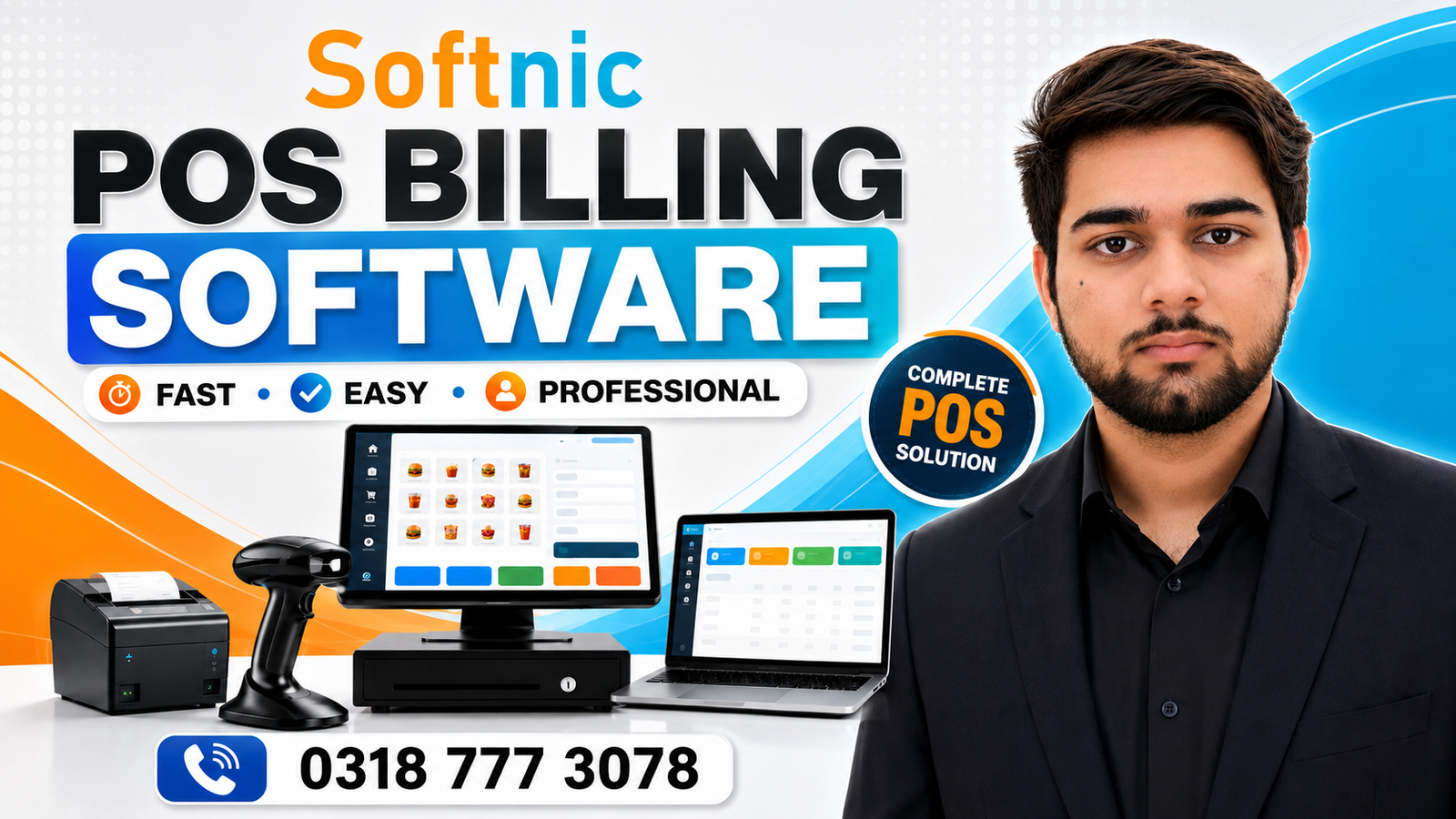
Pos Software With Tax Settings
When a business processes sales, taxes are not just a legal obligation—they’re a critical part of the revenue flow. A POS (Point‑of‑Sale) system that can flexibly handle tax settings saves time, reduces errors, and keeps your business compliant with local, regional, and national regulations. In this article we’ll explore why tax configuration is essential, what a robust POS tax module should include, and how Softnic Solutions’ POS software makes it easy for retailers in Pakistan and beyond to stay on top of their tax responsibilities.
Why Tax Settings Matter in POS
Retailers often deal with a patchwork of tax rules: different rates for clothing, food, electronics; exemptions for charitable goods; and varying rules across cities, provinces, and countries. An inaccurate tax calculation can lead to over‑charging customers, under‑reporting revenue, or even costly penalties from tax authorities. A POS that automatically applies the right rate based on product category and location eliminates these risks.
Key Components of Effective Tax Configuration
A well‑designed tax system in your POS should include the following building blocks:
- Tax Rates – Set base rates for each tax category (e.g., GST, VAT, Sales Tax). Allow for temporary adjustments to accommodate seasonal or promotional rates.
- Tax Classes – Group products into classes (ex: food, apparel, electronics) so the system can apply the correct rate automatically.
- Tax Jurisdiction – Define the geographic scope of each rate. This is essential for businesses that sell in multiple provinces or cities.
- Calculation Method – Decide whether the tax is applied on the item price, shipping, or discounts. Most POS systems let you choose “tax on price before discount” or “tax on price after discount.”
- Exemptions & Deductions – Configure rules for exempt customers (e.g., NGOs, government agencies) or items that do not incur tax.
- Rounding Rules – Set how tax amounts are rounded (e.g., to the nearest cent, to the nearest whole rupee). Consistent rounding avoids cumulative discrepancies.
- Reporting & Export – Generate reports that separate taxable and non‑taxable sales, provide totals per jurisdiction, and export data for tax filing.
Implementing Tax Settings in Your POS Software
Most POS solutions, including Softnic Solutions’ custom software, guide you through a step‑by‑step workflow:
- Define Tax Rates – Enter base rates in the admin panel and name each one clearly.
- Create Tax Classes – Assign products to classes. The system automatically pulls the applicable rate when the item is added to a sale.
- Set Jurisdictions – Map rates to specific cities or provinces. If you sell online, link rates to the customer’s delivery address.
- Test Transactions – Run sample sales to confirm the tax amount matches your expectations.
- Review Reports – Export a tax report and verify that totals line up with your internal accounting.
By following this sequence, you’ll ensure the POS applies tax correctly in every transaction—whether it’s an in‑store purchase or a delivery through your e‑commerce platform.
Common Tax Challenges & How to Overcome Them
- Multi‑Jurisdiction Compliance – When products cross borders, the POS must switch rates automatically. Use the “tax jurisdiction” feature to map each state or province.
- Seasonal Rate Changes – Sales tax can fluctuate during holidays or special events. Store temporary rates and schedule them to activate and expire automatically.
- Multi‑Currency Sales – If you accept foreign currencies, the POS should convert rates using the latest exchange data before applying local tax.
- Exemption Handling – For customers who qualify for tax exemption, maintain a list of exempt IDs and validate them at checkout.
Integrating Tax Features with Other POS Modules
Tax settings are part of a larger ecosystem. Here’s how Softnic Solutions’ POS integrates tax management with key modules:
- Discount Management – When a discount is applied before tax, the tax calculation reflects the reduced amount, preventing over‑charging.
- Return Management – Returns automatically reverse the tax amount, keeping financial records accurate.
- Payment Tracking – The system records tax collected in the same ledger as cash or card payments, simplifying reconciliations.
- Barcode Label Printing – Product labels include tax class codes, ensuring the correct rate is applied even when a clerk scans a bar‑coded item.
- Stock Alerts – When a product’s price changes (e.g., due to a tax increase), stock alerts notify staff to update pricing and inventory records.
Best Practices for Managing Taxes in Retail
Follow these guidelines to keep your tax process efficient and error‑free:
- Centralize Configuration – Keep all tax rates, classes, and exemptions in a single admin area so updates propagate automatically.
- Automate Rate Updates – Link the system to a government API or update schedule to receive tax rate changes without manual intervention.
- Audit Trail – Enable logging of every tax rule change. This provides accountability and eases compliance audits.
- Periodic Reconciliation – Compare POS tax totals with bank deposits or accounting entries monthly to detect discrepancies early.
- Staff Training – Ensure cashiers and managers understand how tax is applied and know where to find tax reports.
By embedding these practices into daily operations, retailers can focus on sales rather than paperwork.
Conclusion
Tax settings are a cornerstone of any reliable POS system. With the right configuration, you reduce the risk of compliance violations, improve customer trust, and streamline your accounting workflow. Softnic Solutions’ POS platform brings these capabilities into one unified solution—tailored for Pakistani retailers and adaptable for global expansion. Implementing robust tax management today positions your business for accurate, hassle‑free sales tomorrow.