

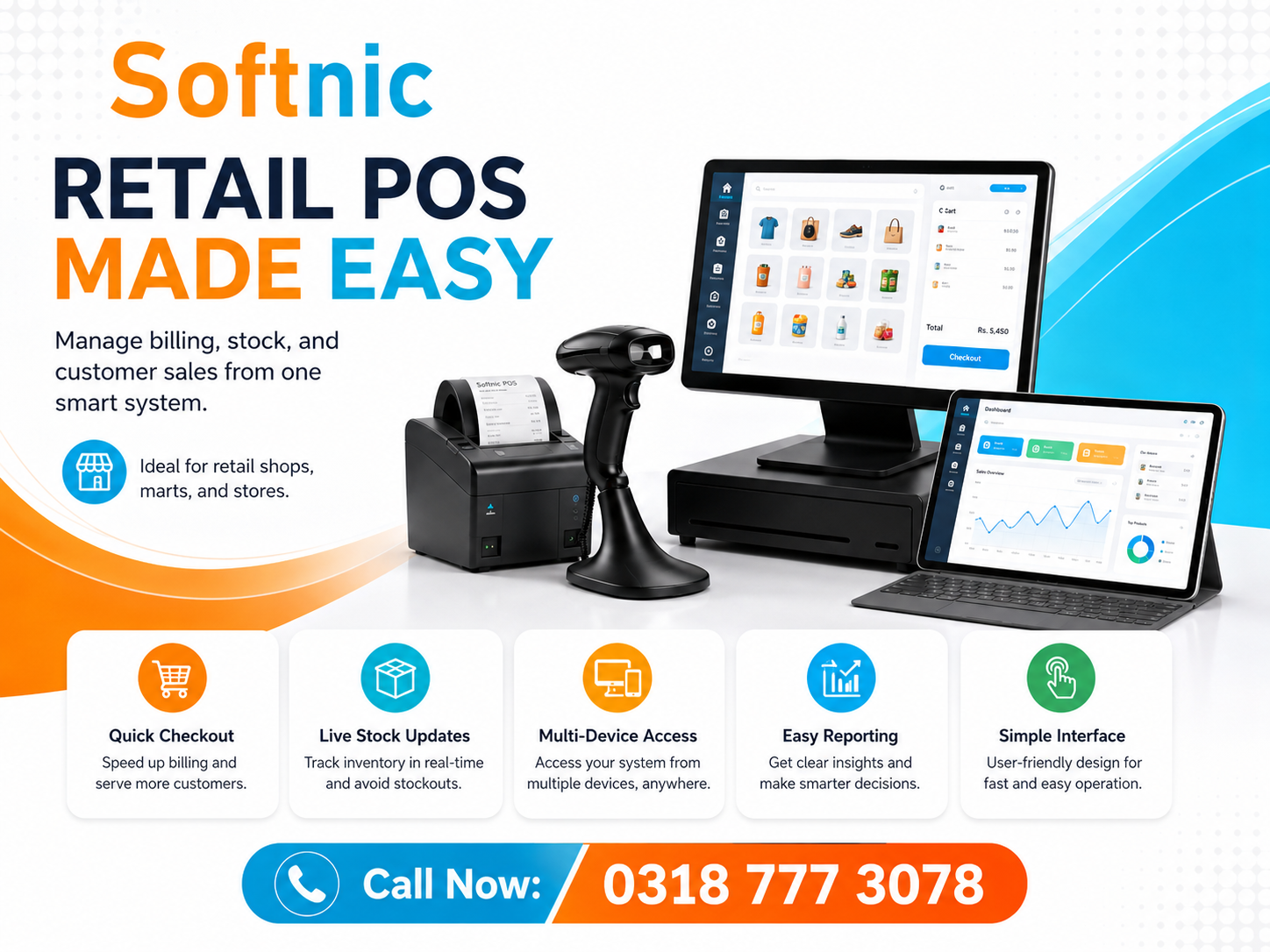
Pc Barcode Software
Running a retail store, warehouse, or any operation that relies on inventory tracking often means dealing with dozens, if not hundreds, of product codes each day. Manually entering these codes is slow, error‑prone, and can quickly become a bottleneck. PC barcode software solves this problem by turning a ordinary computer into a powerful scanning hub that reads barcodes, updates databases, and streamlines workflows without the need for expensive dedicated hardware.
What Is PC Barcode Software?
PC barcode software is a program installed on a Windows, macOS, or Linux computer that works with a barcode scanner (USB, Bluetooth, or even a smartphone camera) to capture barcode data. Once a barcode is read, the software can:
- Input the code directly into any active field (like a spreadsheet or POS system)
- Trigger custom actions such as looking up product details, updating stock levels, or generating invoices
- Save scan history for auditing or reporting
- Integrate with existing business tools through APIs or simple file exports
Because it runs on a standard PC, the solution is cost‑effective, easy to update, and can be scaled across multiple workstations.
Why Businesses Need PC Barcode Software
Reduces Data Entry Errors
Manual typing of long numeric or alphanumeric codes inevitably leads to mistakes. A scanner paired with reliable PC barcode software eliminates transcription errors, ensuring that the exact code captured from the label is recorded.
Speeds Up Operations
Scanning a barcode takes a fraction of a second compared to typing it out. In high‑volume environments—such as receiving shipments, conducting cycle counts, or processing sales—this speed translates into noticeable time savings.
Lowers Hardware Costs
Instead of purchasing proprietary barcode terminals, businesses can use existing computers and affordable USB scanners. The software layer provides the functionality that would otherwise require a dedicated device.
Improves Traceability
Every scan can be timestamped and linked to a user or workstation. This creates an audit trail that helps with inventory reconciliation, recall management, and compliance reporting.
Key Features to Look For
- Compatibility: Works with the scanner model you own and supports common barcode symbologies (UPC, EAN, Code 128, QR, etc.).
- Flexible Output: Can send data as keyboard emulation, clipboard copy, or direct API calls to your inventory or POS software.
- Customizable Actions: Allows you to define what happens after a scan—open a URL, run a script, or update a database field.
- Offline Capability: Functions without an internet connection, storing scans locally until a sync is possible.
- User Management: Supports multiple operator profiles with different permission levels.
- Reporting Tools: Provides simple export options (CSV, Excel) for daily scan summaries.
How to Choose the Right PC Barcode Software
- Assess your workflow: Determine where scanning will happen (receiving, sales floor, warehouse) and what systems need to receive the data.
- List required symbologies: Make sure the software supports all barcode types you encounter.
- Test compatibility: Download a trial version and connect your scanner to verify smooth operation.
- Evaluate customization: Look for the ability to map scans to specific fields or trigger scripts without needing a developer.
- Consider support and updates: Choose a provider that offers clear documentation and regular updates for OS compatibility.
- Review pricing: Many vendors offer free tiers for basic use; paid plans add advanced features like network licensing or cloud sync.
Steps to Implement PC Barcode Software in Your Workflow
- Install the software on the designated PC following the vendor’s instructions.
- Connect your barcode scanner (USB or Bluetooth) and confirm that the PC recognizes it as an input device.
- Configure the software’s output method—most users start with keyboard emulation for simplicity.
- Set up any desired post‑scan actions, such as opening a product lookup page or incrementing a quantity field in your inventory sheet.
- Run a pilot test with a small batch of items to verify accuracy and speed.
- Gather feedback from operators and adjust settings (e.g., suffix characters, scan delay) as needed.
- Roll out the solution to additional workstations, maintaining consistent configuration across the team.
Best Practices for Using PC Barcode Software
- Keep scanner firmware up to date to avoid misreads.
- Use a consistent scanning angle and distance; most scanners perform best when the barcode fills the viewfinder.
- Regularly export scan logs and reconcile them with your inventory records to catch discrepancies early.
- Train staff on what to do if a scan fails—manual entry should be a last resort, not a habit.
- Secure the host PC with standard antivirus and restrict physical access to prevent tampering.
- If you operate in multiple locations, consider a version that offers centralized license management.
Where to Find PC Barcode Software Options
Softnic Solutions offers several related resources that can help you explore different approaches:
- Desktop Barcode Software – ideal for businesses that prefer a locally installed solution.
- Offline Barcode Software – works without internet, storing data locally for later sync.
- Online Barcode Software – cloud‑based option for real‑time sharing across sites.
- Best Barcode Software – a comparison of top‑rated packages based on features and user feedback.
- Free Barcode Software – entry‑level tools suitable for small shops or trial purposes.
By integrating PC barcode software into your daily operations, you turn a simple computer into a reliable data capture hub. The result is faster processing, fewer mistakes, and clearer visibility into inventory movements—all without investing in specialized terminals. Start by evaluating your current workflow, testing a compatible solution, and scaling the setup as your business grows.


1 Comment
[…] PC Barcode Software – Designed for desktop environments, this package supports both 1D and 2D code generation, integrates with common databases, and offers offline printing capabilities. […]