

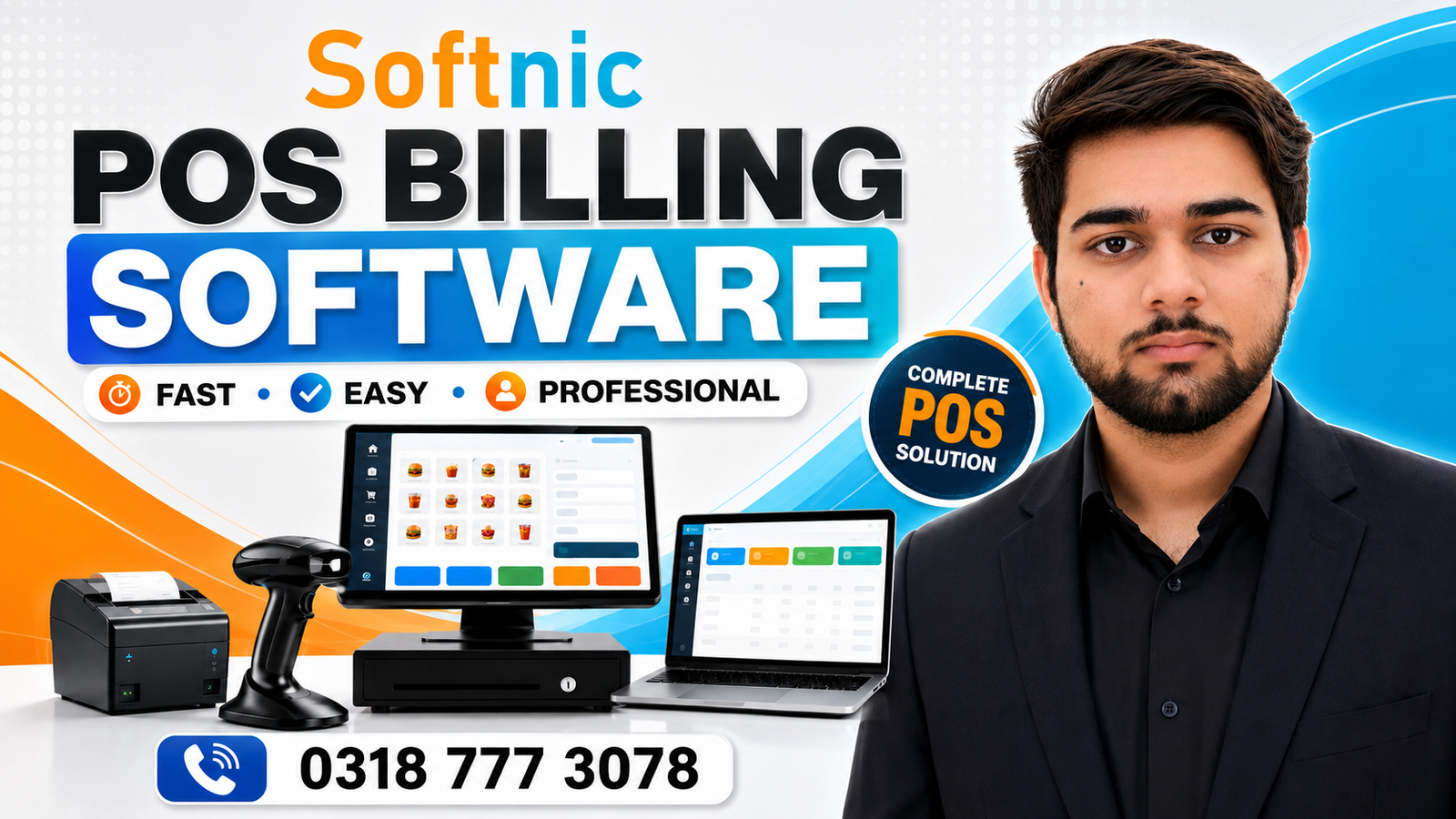
Desktop Pos Software
Running a retail shop, a café, or a small wholesale outlet means juggling sales, stock levels, staff schedules, and customer preferences—all in real time. Without a reliable system, these tasks become manual, time‑consuming, and error‑prone. Desktop point‑of‑sale (POS) software solves that dilemma by turning a computer into a comprehensive sales hub. It handles transactions, inventory, reporting, and much more, all from a single interface that sits right on the shop floor.
Why Desktop POS Software? The Core Advantages
Desktop POS software differs from mobile or cloud‑based solutions in a few key ways:
- Reliable Offline Functionality – Stores can process sales even when the internet is down, avoiding lost transactions.
- High Performance – Running locally on a dedicated machine gives faster response times, crucial during busy periods.
- Full Control of Data – Sensitive customer and financial data remains on the premises, helping meet privacy requirements.
- Customizable Interfaces – The screen layout, receipt style, and tax calculations can be tailored to a shop’s specific needs.
When a small business wants a robust, no‑frills solution that integrates with existing hardware (barcode scanners, receipt printers, cash drawers), desktop POS is often the best fit.
Key Features Every Desktop POS Should Offer
- Sales Processing – Quick add‑to‑cart, discounts, multiple payment methods, and split payments.
- Inventory Tracking – Automatic updates to stock levels, low‑stock alerts, and purchase order generation.
- Customer Management – Store purchase history, loyalty points, and personalized promotions.
- Reporting & Analytics – Real‑time dashboards, daily sales summaries, and profit margins.
- Multi‑Store Management – Centralized control of several outlets from one system.
- Security & Permissions – Role‑based access, audit trails, and data encryption.
Industry‑Specific Benefits
Retail – Keeps stock accurate, reduces shrinkage, and offers upsell suggestions at checkout.
Food & Beverage – Manages table orders, integrates with kitchen printers, and tracks kitchen inventory.
Wholesale & B2B – Handles large orders, bulk pricing, and customer credit limits.
Choosing the Right Desktop POS: What to Consider
Integration with Inventory & Billing
Effective POS software must speak to your inventory and billing systems. If you’re using a dedicated inventory management solution, ensure that the POS can push data back and forth automatically. For example, the Inventory POS Software page outlines how to sync stock levels between systems, eliminating double‑entry errors.
Offline vs Online: When a Desktop POS Shines
While cloud‑based POS offers remote access, many brick‑and‑mortar businesses still rely on a Offline POS Software solution. Offline mode guarantees sales continuity during power or internet outages. However, if your business requires real‑time remote monitoring—such as a chain of cafés—an online variant might be more appropriate.
Customizability and Scalability
Choose a system that grows with your business. Does it allow you to add new product categories, or introduce a loyalty program without a costly upgrade? A flexible desktop POS can adapt to new pricing models, seasonal promotions, or additional outlets.
Implementation Steps for Desktop POS
- Assess Your Business Needs
- Map out current sales processes, point‑of‑sale hardware, and inventory flows.
- Identify pain points: manual cash handling, stock miscounts, slow checkout times.
- Define Specific Requirements
- List must‑have features: barcode scanning, multi‑currency, or integrated loyalty.
- Decide on reporting granularity—daily totals, hourly peaks, or sales by item.
- Choose a Reputable Vendor
- Softnic Solutions offers desktop POS packages that integrate with our Billing POS Software Explained page, ensuring seamless financial workflows.
- Request demos, read case studies, and check local support availability.
- Setup and Configuration
- Install the software on a dedicated computer or server.
- Connect peripherals—barcode scanners, receipt printers, cash drawers.
- Import product catalog and configure tax rates, discount rules, and payment gateways.
- Staff Training
- Conduct hands‑on sessions covering sales entry, refund processing, and basic troubleshooting.
- Create quick‑reference guides for common tasks.
- Go Live & Support
- Run a soft launch with a limited set of transactions.
- Monitor data integrity, transaction speed, and user feedback.
- Set up a support routine—weekly backups, monthly performance reviews.
“Switching to a desktop POS system cut our checkout time by 30% and eliminated stock discrepancies. The staff felt empowered, and customers appreciated the speed.” – Retail Manager, Daska
Practical Tips for Maximizing Desktop POS Efficiency
- Automate Repetitive Tasks – Use batch import/export for inventory updates.
- Leverage Reporting – Review sales trends weekly to adjust staffing and promotions.
- Maintain Security Protocols – Regularly update software, change passwords, and restrict access to sensitive functions.
- Backup Frequently – Store copies on external drives or a secure local network.
- Keep Hardware Updated – Replace aging barcode scanners and receipt printers to avoid downtime.
Conclusion: Desktop POS as a Strategic Asset
A well‑implemented desktop POS software transforms a busy shop floor into a data‑driven, efficient operation. By providing offline reliability, seamless inventory integration, and detailed reporting, it empowers owners to focus on growth rather than administrative headaches. Whether you’re a boutique retailer, a café, or a wholesale distributor, the right desktop POS system can elevate service quality, reduce errors, and boost profitability—all while giving you the control and flexibility your business deserves.


2 Comments
[…] desktop POS and cloud POS offer powerful features, they each come with specific […]
[…] alone cannot run a storefront; it requires dedicated desktop POS software designed to coordinate billing logic, catalog databases, user permissions, and tax calculations. […]