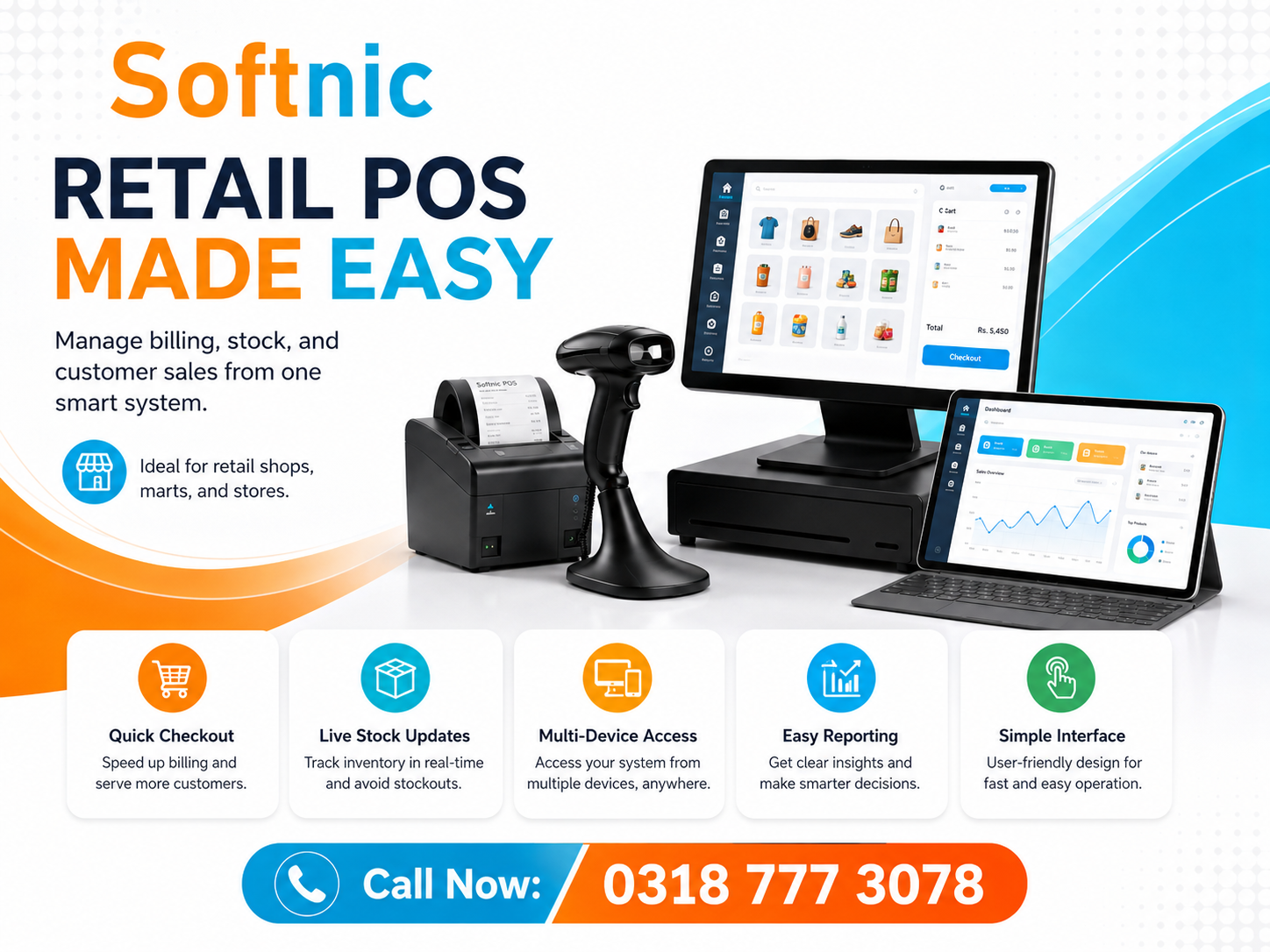
With Thermal Printer Barcode Inventory Software
Managing stock efficiently is a cornerstone of any thriving business. When inventory data is captured and printed instantly, errors shrink, staff productivity rises, and customers enjoy a smoother experience. That’s where thermal printer barcode inventory software shines—combining the speed of a thermal printer with the reliability of barcode technology to streamline operations from the front desk to the back‑room.
Why a Thermal Printer Makes Sense for Inventory Management
Unlike inkjet or dot‑matrix printers, thermal printers use heat to produce images, offering several advantages:
- Speed – Up to 100 mm/s, perfect for quick label generation.
- Reliability – No ink or toner cartridges mean fewer maintenance stops.
- Durability – Labels resist smudging, heat, and humidity—ideal for warehouses.
- Cost‑effective – Lower running costs over time compared to ink‑based systems.
When paired with barcode software, these benefits translate into real business gains: fewer manual data entry errors, instant barcode scanning, and automated stock updates.
Key Features of Thermal Printer Barcode Inventory Software
Whether you’re a retailer, a logistics hub, or a manufacturing unit, the following features should be standard in any robust solution:
- Real‑time inventory sync – Labels print as soon as stock levels change.
- Customizable barcode layouts – Add logos, prices, expiry dates, and more.
- Multi‑printer support – Manage several thermal printers across locations.
- Integrated point‑of‑sale (POS) modules – Seamless connection between sales and inventory.
- Audit trails & reporting – Track every printed label and inventory movement.
- Offline mode – Continue printing during network outages.
Softnic Solutions’ thermal printer barcode software incorporates all these capabilities, ensuring a hassle‑free setup for businesses of any size.
Step‑by‑Step Implementation Guide
- Assess Your Workflow
Map out where and when labels need to be printed—order receipts, packing slips, or item tags. - Select a Compatible Thermal Printer
Choose a model that supports the required paper width and has reliable connectivity (USB, Ethernet, or Wi‑Fi). - Install the Software
Download the Softnic Solutions package, run the installer, and follow the wizard to connect the printer. - Configure Label Templates
Use the built‑in editor to add product images, barcodes, and custom fields. - Integrate with Your ERP/Inventory System
Set up API endpoints so inventory changes trigger automatic label printing. - Run a Pilot Test
Print a batch of sample labels, scan them with your handheld scanner, and confirm data accuracy. - Train Your Staff
Provide short workshops or cheat‑sheets on how to handle the printer and troubleshoot common issues. - Go Live
Roll out the system across all locations, monitoring print queue health and inventory logs. - Optimize & Maintain
Review printing metrics quarterly, adjust templates, and replace consumables as needed.
Following these steps ensures a smooth transition from manual label creation to an automated, error‑free process.
Thermal vs. Inkjet Printers: What You Need to Know
Choosing the right printer type hinges on your use case:
- Thermal Printers – Best for high‑volume, durable labels. Ideal for warehouses, shipping, and retail environments.
- Inkjet Printers – Suitable for occasional printing, photo‑quality output, or low‑volume environments.
In most inventory scenarios, thermal printers win due to their speed, low maintenance, and label longevity. However, if your business requires color prints or infrequent labeling, an inkjet might suffice—just be prepared for higher cartridge costs and slower printing speeds.
Caution: Common Pitfalls and How to Avoid Them
Even with a top‑notch system, certain mistakes can derail efficiency. Keep an eye out for these:
- Incorrect Label Size Settings – Mismatch between software template and printer roll leads to misaligned prints.
- Insufficient Paper Supply Alerts – Disable or ignore low‑paper notifications; run out of labels mid‑shift.
- Overlooking Firmware Updates – Outdated printer firmware may cause connectivity or print quality issues.
- Ignoring Data Backup – Without regular backups of inventory logs, a system crash could lose critical information.
- Neglecting User Training – Staff who don’t know how to manage print queues can cause bottlenecks.
Implementing routine checks and fostering a culture of proactive maintenance will keep your inventory system running smoothly.
By integrating thermal printer barcode inventory software, Softnic Solutions helps businesses eliminate manual labor, reduce errors, and boost throughput. From setup to ongoing management, the platform offers a comprehensive solution that adapts to your specific workflow, ensuring accurate stock counts and instant label printing across the board.