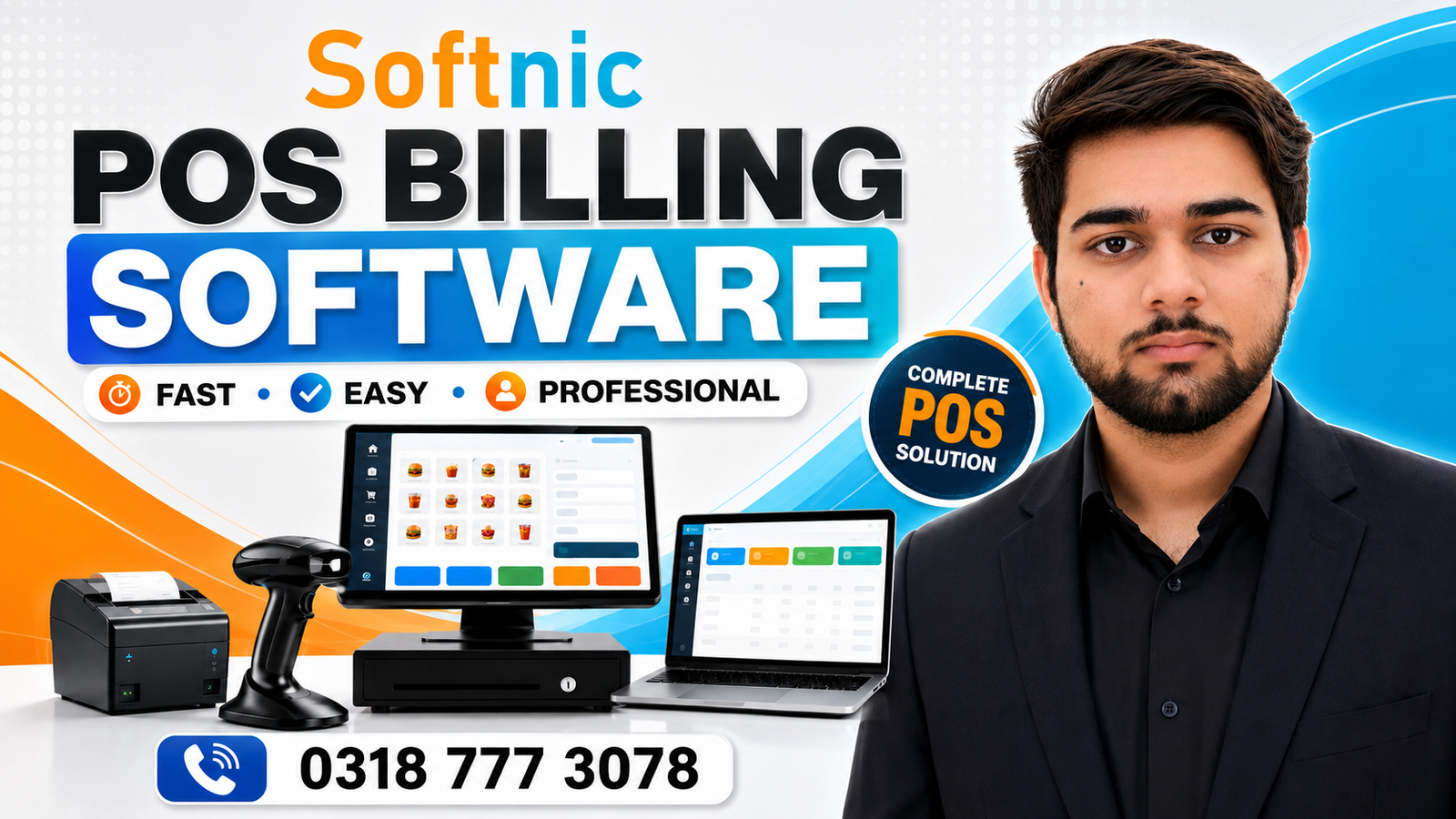
With Thermal Printer Retail Pos Software
When a retailer upgrades to a modern POS system, the printing module often gets a quick glance. Yet, the choice of printer can profoundly impact transaction speed, customer experience, and overall operational efficiency. A thermal printer—designed to produce crisp, fast, and reliable receipts—has become the industry standard for retail environments that demand speed and durability. Below, we explain how a thermal printer retail POS software transforms everyday sales and why Softnic Solutions’ solutions are engineered to support this critical hardware.
Why a Thermal Printer Is a Must‑Have in Retail POS
Thermal printers use heat‑sensitive paper to generate images. This design eliminates moving parts, reducing maintenance costs and the risk of jams. The benefits translate into tangible business advantages:
- Speed: Printing a 3‑inch receipt takes less than half a second.
- Reliability: No ribbons or ink cartridges mean fewer breakdowns during peak hours.
- Cost‑effectiveness: Lower power consumption and minimal consumables keep running costs low.
- Quality: Sharp text and logos enhance brand perception.
- Durability: Resistant to fading and water damage, essential for outdoor or high‑traffic settings.
Key Features to Look For in Thermal Printer‑Enabled POS Software
A well‑integrated system goes beyond basic printing. When evaluating a thermal printer retail POS software, consider the following features:
- Auto‑Detection & Driver Management – The software should automatically recognize the printer and install the correct driver, avoiding manual setup.
- Customizable Receipt Templates – Easily modify layouts to include logos, terms, or QR codes without code changes.
- Batch Printing & Offline Modes – Store transactions locally if the network drops, then sync once connectivity returns.
- Integration with Inventory & Accounting – Real‑time updates help prevent stockouts and reconcile sales.
- Security & Data Encryption – Protect transaction data during transmission and printing.
Softnic Solutions’ Approach to Thermal Printer Integration
Softnic Solutions designs POS platforms that natively support a wide range of thermal printers, from popular models like Epson TM‑T88II to newer, compact options. Our framework guarantees:
- Seamless plug‑and‑play connectivity via USB, Ethernet, or Bluetooth.
- Zero‑configuration printing for busy checkout lanes.
- Cross‑platform compatibility—Windows, macOS, Linux, and web browsers.
- Scalable architecture that grows with your store—single register to multi‑location chains.
For a deeper dive into the receipt‑printing capabilities that accompany our POS systems, you can explore our With Receipt Printing Retail POS Software page.
Step‑by‑Step Guide to Deploying a Thermal Printer with Softnic POS
- Choose the Right Printer – Match printer size and speed to store layout. For high‑volume kiosks, a 2‑inch wide printer offers a balance between speed and cost.
- Connect and Verify – Plug the printer into the POS terminal, power it on, and use the built‑in diagnostic test to ensure it prints correctly.
- Install the POS Software – Run the installer on the POS workstation, following the wizard to detect the printer automatically.
- Configure Receipt Templates – In the admin panel, open the “Receipt Layout” module, upload your logo, set font sizes, and choose the paper size.
- Test a Full Transaction – Complete a mock sale, observe the printing process, and adjust any spacing or alignment issues.
- Enable Offline Buffering – If your store relies on a wireless connection, activate the offline mode to prevent lost sales during outages.
- Train Staff – Provide a quick reference guide on how to reset the printer, replace paper, and troubleshoot common errors.
- Monitor & Maintain – Schedule weekly checks, keep firmware up to date, and replace thermal paper ribbons as needed.
Thermal vs. Ink‑jet/Band Printers: A Quick Comparison
Retailers often compare thermal printers with ink‑jet or band printers. Here’s a concise snapshot:
| Feature | Thermal | Ink‑jet/Band |
|---|---|---|
| Speed | High (3‑inch/second) | Medium |
| Maintenance | Low (no ink ribbons) | High (ink cartridges, cleaning) |
| Consumables Cost | Low (thermal paper only) | High (ink or ribbon) |
| Durability | Excellent (water‑proof) | Moderate |
| Print Quality | Text‑centric, less color | High‑resolution, color capability |
In most retail scenarios—especially high‑volume or outdoor settings—thermal printers strike the best balance between cost, speed, and reliability. However, if your business requires color receipts or frequent barcode scanning, an ink‑jet or band printer might be more appropriate.
Cautionary Tips for Long‑Term Success
While thermal printers are robust, avoid the following pitfalls:
- Using Low‑Quality Thermal Paper – Cheap paper can lead to faded text or premature paper jams.
- Overloading the Printer – Continuous heavy printing without breaks may overheat the thermal head.
- Ignoring Firmware Updates – Updated firmware can patch security vulnerabilities and improve driver compatibility.
- Neglecting Calibration – Periodic calibration ensures the print alignment remains precise.
By following these best practices, your thermal printer retail POS software will continue to deliver reliable performance for years to come.